Getting Started
Installation
First, please install DataJoint via one of the following:
- Utilize MATLAB built-in GUI i.e. Top Ribbon -> Add-Ons -> Get Add-Ons
- Search and Select
DataJoint - Select Add from GitHub
- Utilize MATLAB built-in GUI i.e. Top Ribbon -> Add-Ons -> Get Add-Ons
- Search and Select
DataJoint - Select Download from GitHub
- Save
DataJoint.mltbxlocally - Navigate in MATLAB tree browser to saved toolbox file
- Right-Click and Select Install
- Select Install
- Install GHToolbox using using an appropriate method in https://github.com/datajoint/GHToolbox
- run:
ghtb.install('datajoint/datajoint-matlab')
- Download
DataJoint.mltbxlocally - Navigate in MATLAB tree browser to saved toolbox file
- Right-Click and Select Install
- Select Install
After installing, that you have the latest version from Matlab:
>> dj.version
DataJoint version 3.5.0
Connection
At the MATLAB command prompt, assign the environment variables with
the database credentials. For example, if you are connection to the
server tutorial-db.datajoint.io with username alice and password
fake-password, execute the following commands:
setenv DJ_USER alice
setenv DJ_HOST tutorial-db.datajoint.io
setenv DJ_PASS 'fake-password'
Note
Although you may connect to any MySQL server of your choice, the DataJoint company
offers an online tutorial environment at tutorial-db.datajoint.io. Simply sign up
for a free DataJoint account. You will be granted
privileges to create schemas that are prefixed as {user}_.
You will need to execute these commands at the beginning of each DataJoint work session. To automate this process, you might add these items to the Matlab startup.m script.
However, be careful not to share this file or commit it to a public directory (a common
mistake), as it contains a your login credentials in plain text. If you are not sure,
it is better not to set DJ_PASS, in which case DataJoint will prompt to enter the
password when connecting to the database.
To change the database password, use the following command
>> dj.setPassword('my#cool!new*password')
And update your credentials in your startup script for the next session.
For more information on various settings, access help via help('dj.config') or review
it online
here.
Creating Schemas
A schema can be created either automatically using the dj.createSchema
script or manually. While dj.createSchema simplifies the process, we'll also highlight
the manual approach to demonstrate each step.
Manual
We can create the database schema using the following command:
query(dj.conn, 'CREATE SCHEMA `{user}_my_schema`')
Server privileges
You must have create privileges for the schema name pattern. It is a common practice
to grant all privileges to users for schemas that begin with the username, in
addition to some shared schemas. Thus the user alice would be able to perform any
work in any schema that begins with alice_.
Next, we can create the MATLAB package.
DataJoint organizes schemas as MATLAB packages. If you are not familiar with packages, please review:
In your project directory, create the package folder, which must begin with a + sign.
For example, for the schema called my_schema, you would create the folder
+my_schema. Make sure that your project directory (the parent directory of your
package folder) is added to the MATLAB search path.
Finally, we'll associate the package with the database schema.
This step tells DataJoint that all classes in the package folder +my_schema will work
with tables in the database schema {user}_my_schema. Each package corresponds to
exactly one schema. In some special cases, multiple packages may all relate to a single
database schema, but in most cases there will be a one-to-one relationship between
packages and schemas.
In the +my_schema folder, create the file getSchema.m with the
following contents:
function obj = getSchema
persistent OBJ
if isempty(OBJ)
    OBJ = dj.Schema(dj.conn, 'experiment', 'alice_experiment');
end
obj = OBJ;
end
This function returns a persistent object of type dj.Schema,
establishing the link between the my_schema package in MATLAB and the
schema {user}_my_schema on the database server.
Automatic
Alternatively, we can execute
>> dj.createSchema
This automated script will walk you through the steps above and will create the schema,
the package folder, and the getSchema function in that folder.
Defining Tables
DataJoint provides the interactive script dj.new for creating a new table. It will
prompt to enter the new table's class name in the form package.ClassName. This will
create the file +package/ClassName.m.
For example, define the table my_schema.Rectangle
   >> dj.new
   Enter <package>.<ClassName>: my_schema.Rectangle

   Choose table tier:
     L=lookup
     M=manual
     I=imported
     C=computed
     P=part
    (L/M/I/C/P) > M
This will create the file +my_schema.Rectangle.m with the following
contents:
%{
# my newest table
# add primary key here
-----
# add additional attributes
%}
classdef Rectangle < dj.Manual
end
While dj.new adds a little bit of convenience, we can also create the classes from
scratch manually. Each newly created class must inherit from the DataJoint class
corresponding to the correct data tier: dj.Lookup,
dj.Manual, dj.Imported or dj.Computed.
The most important part of the table definition is the comment preceding the classdef.
DataJoint will parse this comment to define the table. The class will become usable
after you edit this comment. For example:
File +my_schema/Rectangle.m
%{
    shape_id: int
    ---
    shape_height: float
    shape_width: float
%}
classdef Rectangle < dj.Manual
end
File +my_schema/Area.m
%{
    -> my_schema.Rectangle
    ---
    shape_area: float
%}
classdef Area < dj.Computed
end
The table definition is contained in the first block comment in the class definition file. Note that although it looks like a mere comment, the table definition is parsed by DataJoint.
Users do not need to do anything special to have the table created in the database. The table is created upon the first attempt to use the class for manipulating its data (e.g. inserting or fetching entities).
Furthermore, DataJoint provides the syncDef method to update the classdef file
definition string for the table with the definition in the actual table:
syncDef(my_schema.Area) % updates the table definition in file +my_schema/Area.m
Diagram
Display
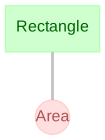
The diagram displays the relationship of the data model in the data pipeline.
This can be done for an entire schema, or multiple schema:
draw(dj.ERD(my_schema.getSchema))
% OR
erd my_schema
erd my_schema my_other_schema
Or for individual or sets of tables:
erd my_schema.Rectangle
draw(dj.ERD(my_schema.Rectangle) + dj.ERD(my_schema.Area))
Customize
Adding or substracting a number to a diagram object adds nodes downstream or upstream, respectively, in the pipeline.
draw(dj.ERD(my_schema.Rectangle)+1) # (1)
- Plot all the tables directly downstream from
my_schema.Rectangle
draw(dj.ERD(my_schema)-1+1) # (1)
- Plot all tables directly downstream of those directly upstream of this schema.
Add data
Let's add data for a rectangle:
insert(my_schema.Rectangle, {1, 2, 4})
insert(my_schema.Rectangle, [{2, 2, 3},{3, 4, 2}])
Run computation
Let's start the computations on our entity: Area.
populate(my_schema.Rectangle)
Query
Let's inspect the results.
Area & 'shape_area >= 8'